
Everything you need
Four powerful tabs. One seamless workflow.
Control Panel
Four generation modes in one interface. Switch between Create Image, Text-to-Video, Frame-to-Video, and Ingredients mode instantly. Import prompts from text files, manage reference images, and map them to individual prompts.
- 4 generation modes with one-click switching
- Bulk prompt import from .txt files
- Shared Ref Upload or 1:1 Batch Upload
- Per-prompt reference image mapping
- Reference Library with persistent storage
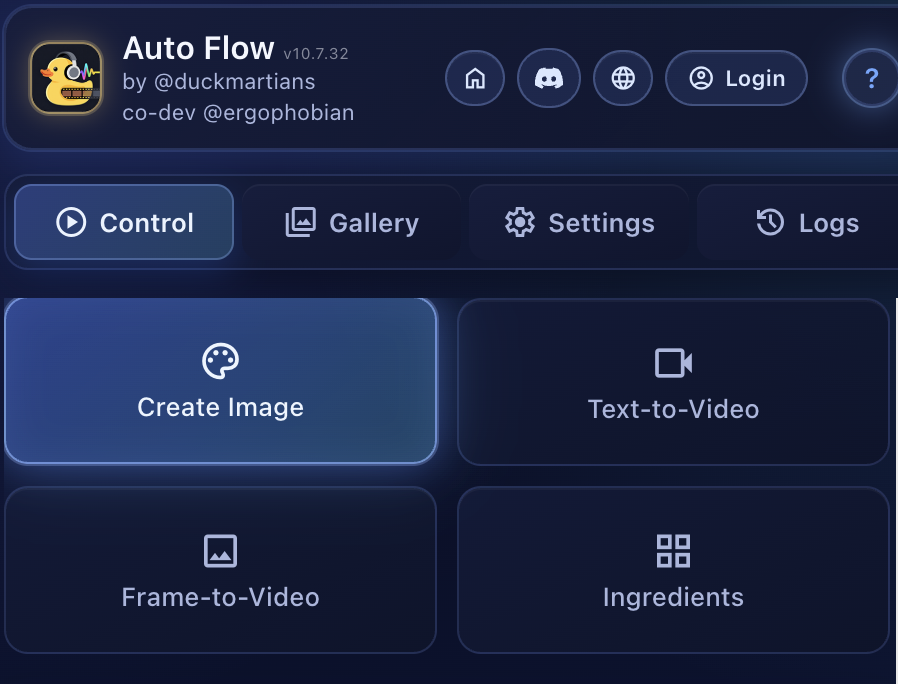 4 Generation Modes
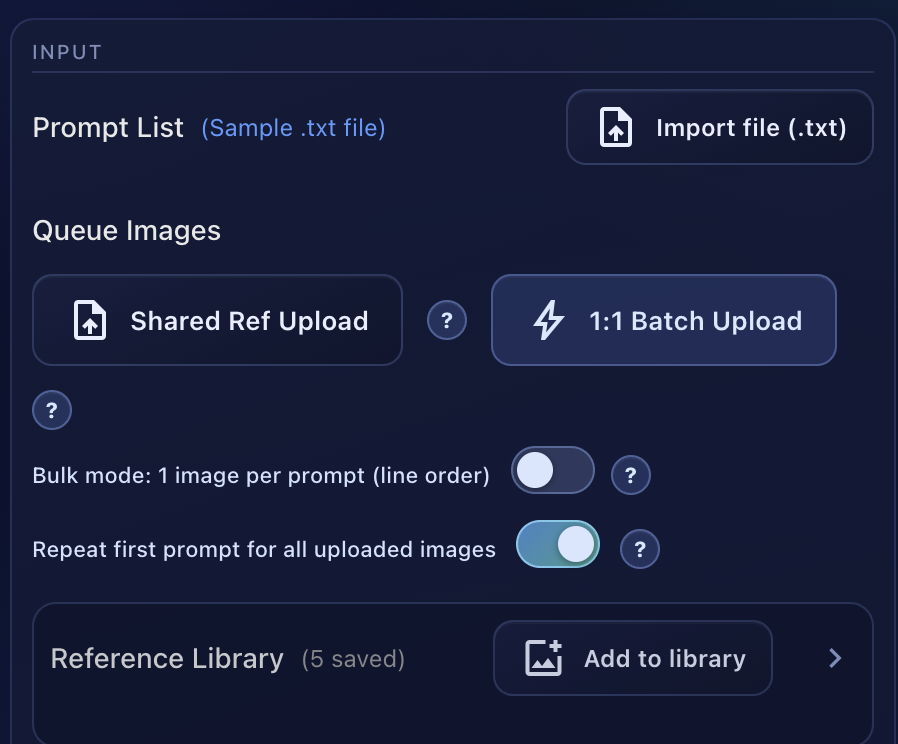 Prompt Input & Upload Options
Smart Gallery
Scan, browse, and manage all your generated content. Golden "Scan All" button finds every image and video. Smart selection tools let you pick randoms, matched pairs, or custom selections — then download at up to 4K resolution or send images directly to the video queue.
- Scan All with one-click golden button
- Random Pick & Pick Matched for curation
- Default or Large grid layout
- Download at 1K, 2K, or 4K resolution
- Animate Images — send to Frame-to-Video queue
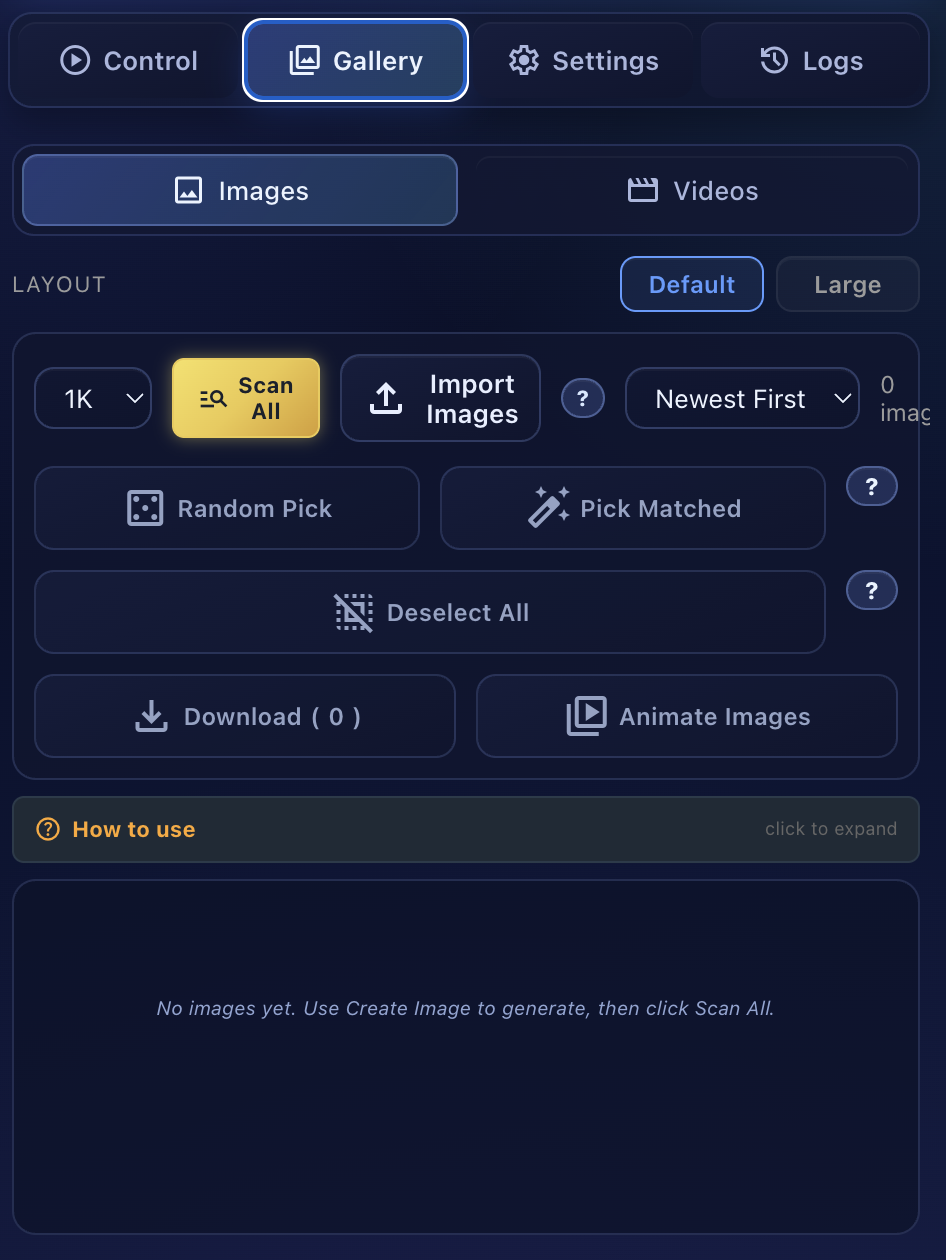 Gallery — Images Tab with All Controls
Full Configuration
Fine-tune every aspect of generation. Choose video models (Veo 3.1 Fast/Quality), set aspect ratios, configure timing with humanized mode, auto-download in your preferred resolution, and pick from 14+ interface languages.
- Video Model: Veo 3.1 Fast or Quality
- Image Model: Nano Banana 2
- Aspect Ratios: 16:9, 9:16, 1:1
- Humanized mode with speed control
- Auto-download at up to 4K
- 14+ language interface
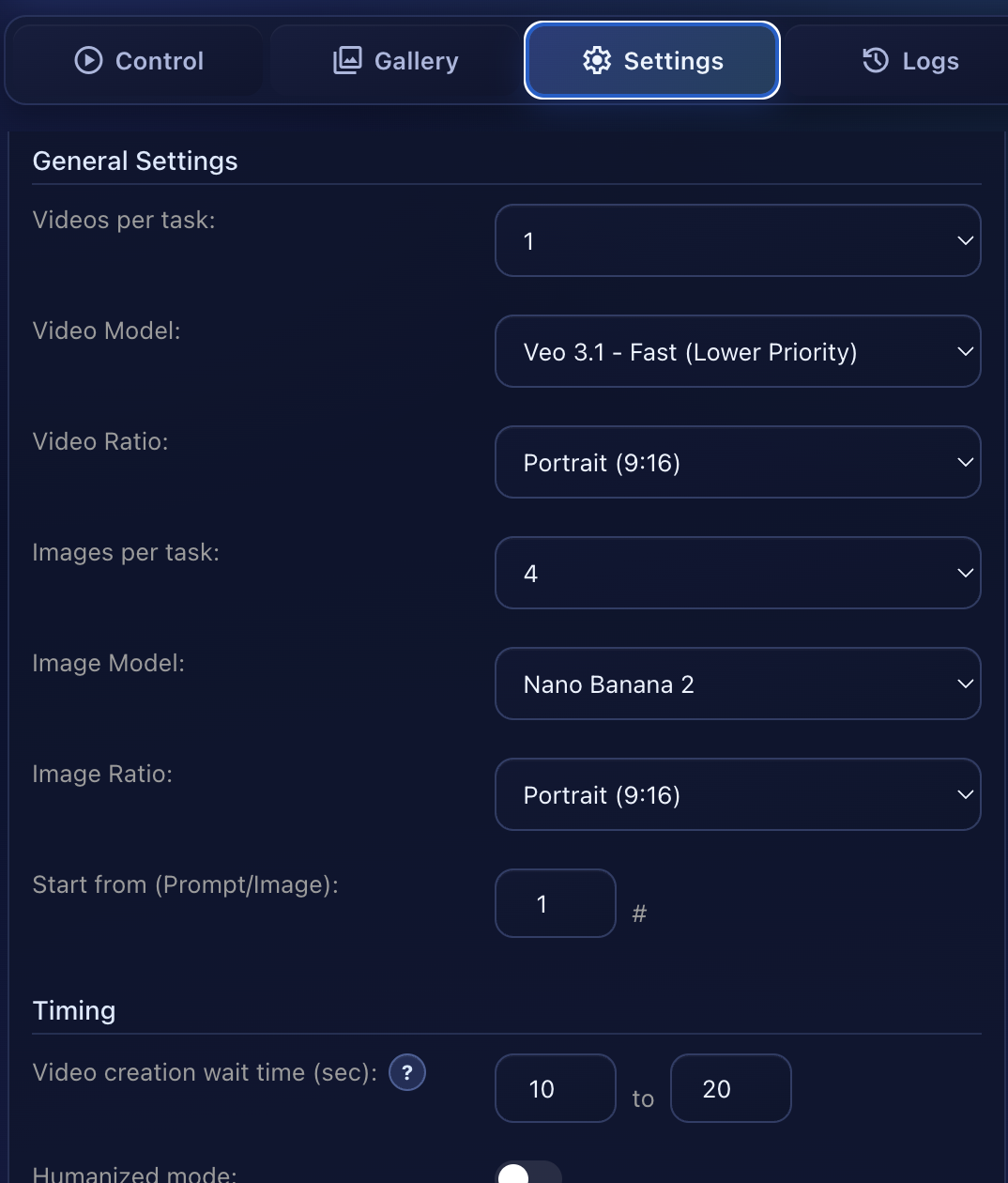 General Settings & Model Selection
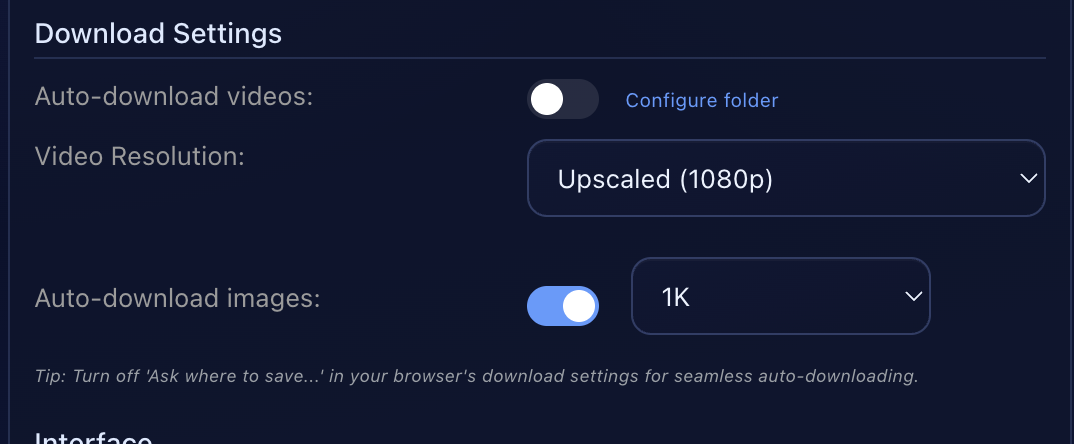 Download Settings
Queue & Progress Tracking
Stack multiple jobs and let Auto Flow run them sequentially. Monitor every prompt with live status updates — Waiting, Generating, Done, or Error. Failed prompts are captured separately for easy retry.
- Multi-job queue with auto-start
- Custom download folder per job
- Live task progress table
- Per-prompt status: Waiting → Generating → Done
- Failed prompt capture with one-click retry
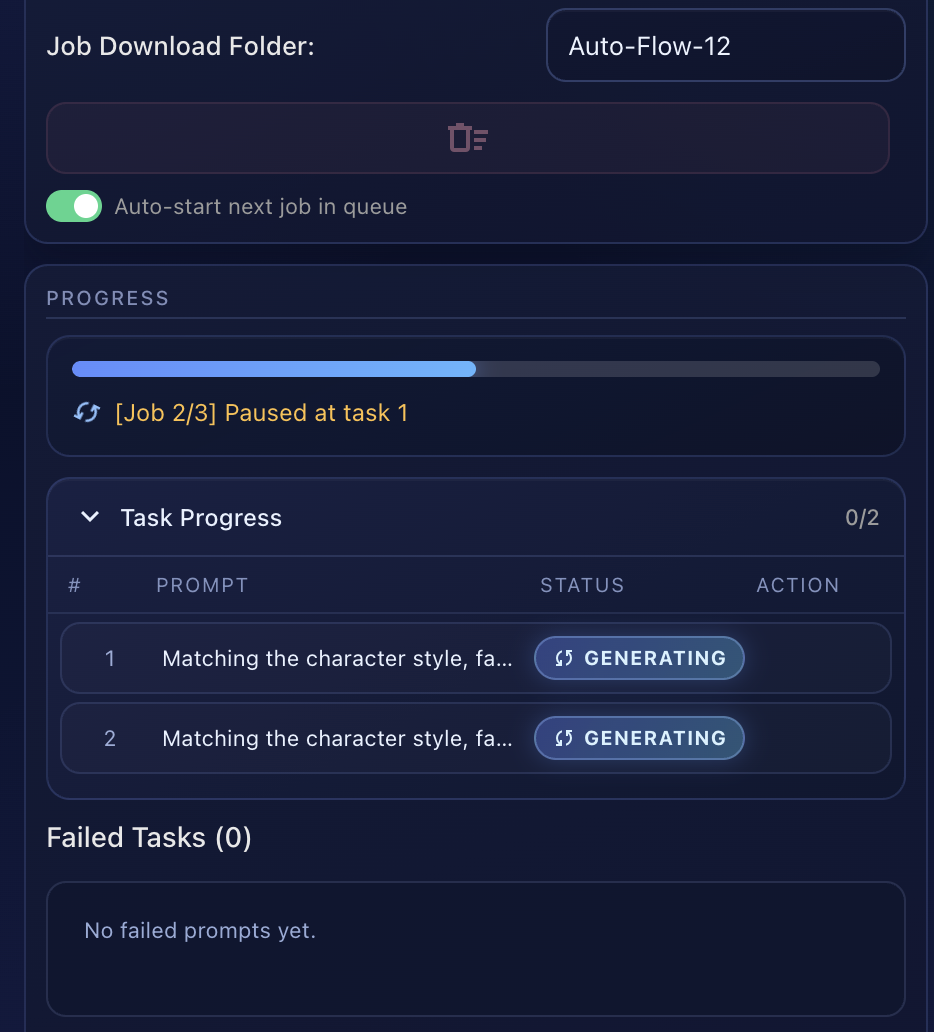 Progress Tracking & Task Table
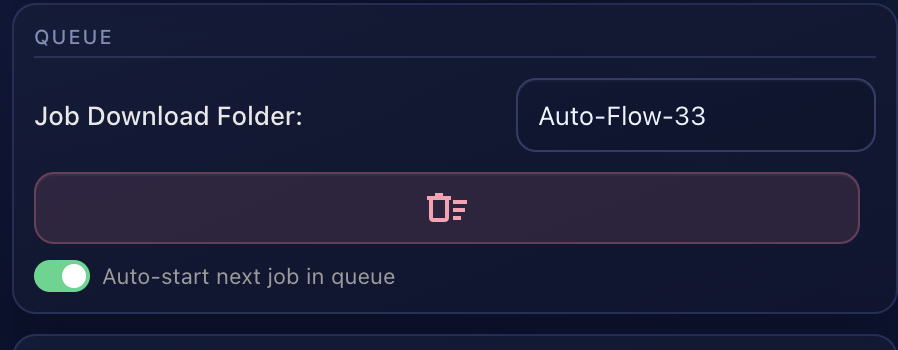 Queue Configuration
Every button, explained
A visual guide to every control in Auto Flow.
Upload Controls
Upload reference images shared across all prompts. Every prompt in your list uses these images as visual references.
Pair images 1-to-1 with prompts. First image goes with first prompt, second with second, and so on.

Bulk mode: 1 image per prompt in line order. Repeat first prompt: reuses the first prompt text for all uploaded images.
Reference Mapping
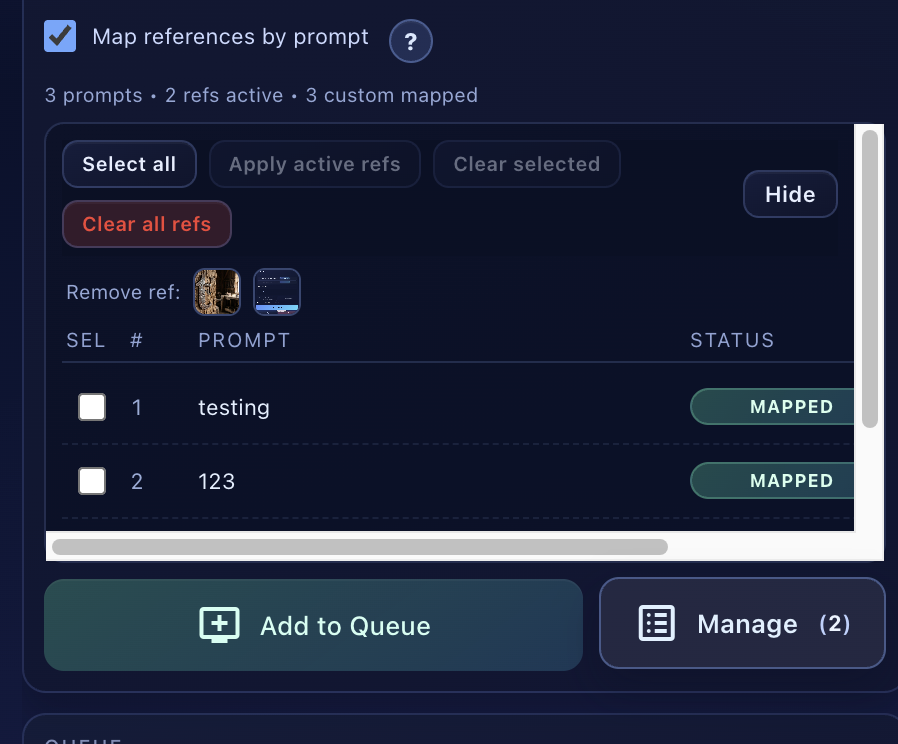
Assign specific reference images to individual prompts. Select All, Apply Active Refs, or Clear Selected. Each prompt shows MAPPED or UNMAPPED status.
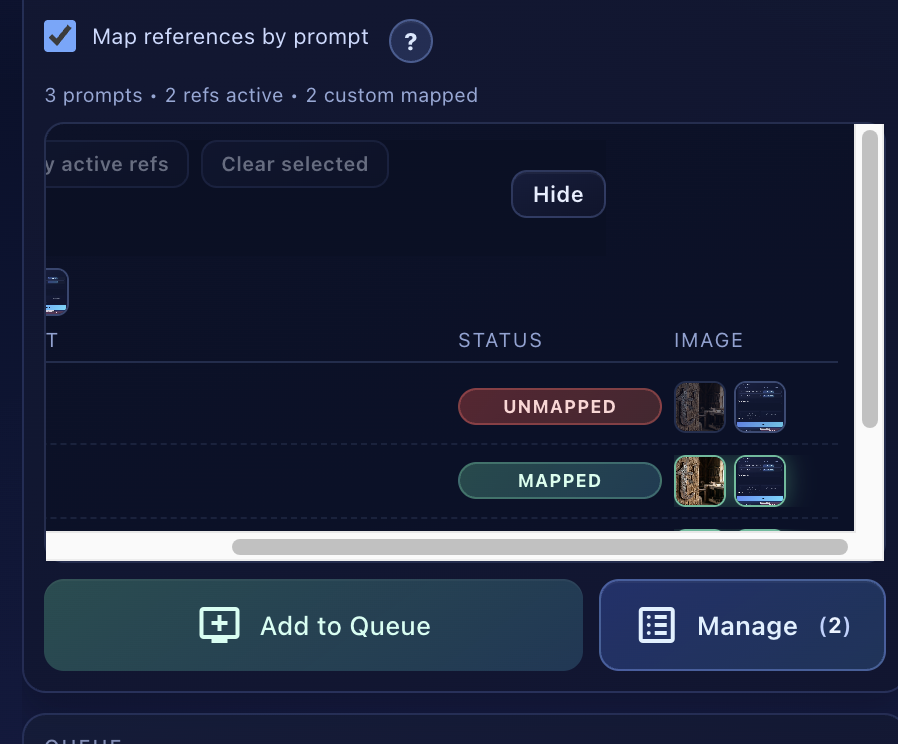
See exactly which reference images are assigned to each prompt. Unmapped prompts use default refs, mapped ones use your custom selection.
Gallery Actions
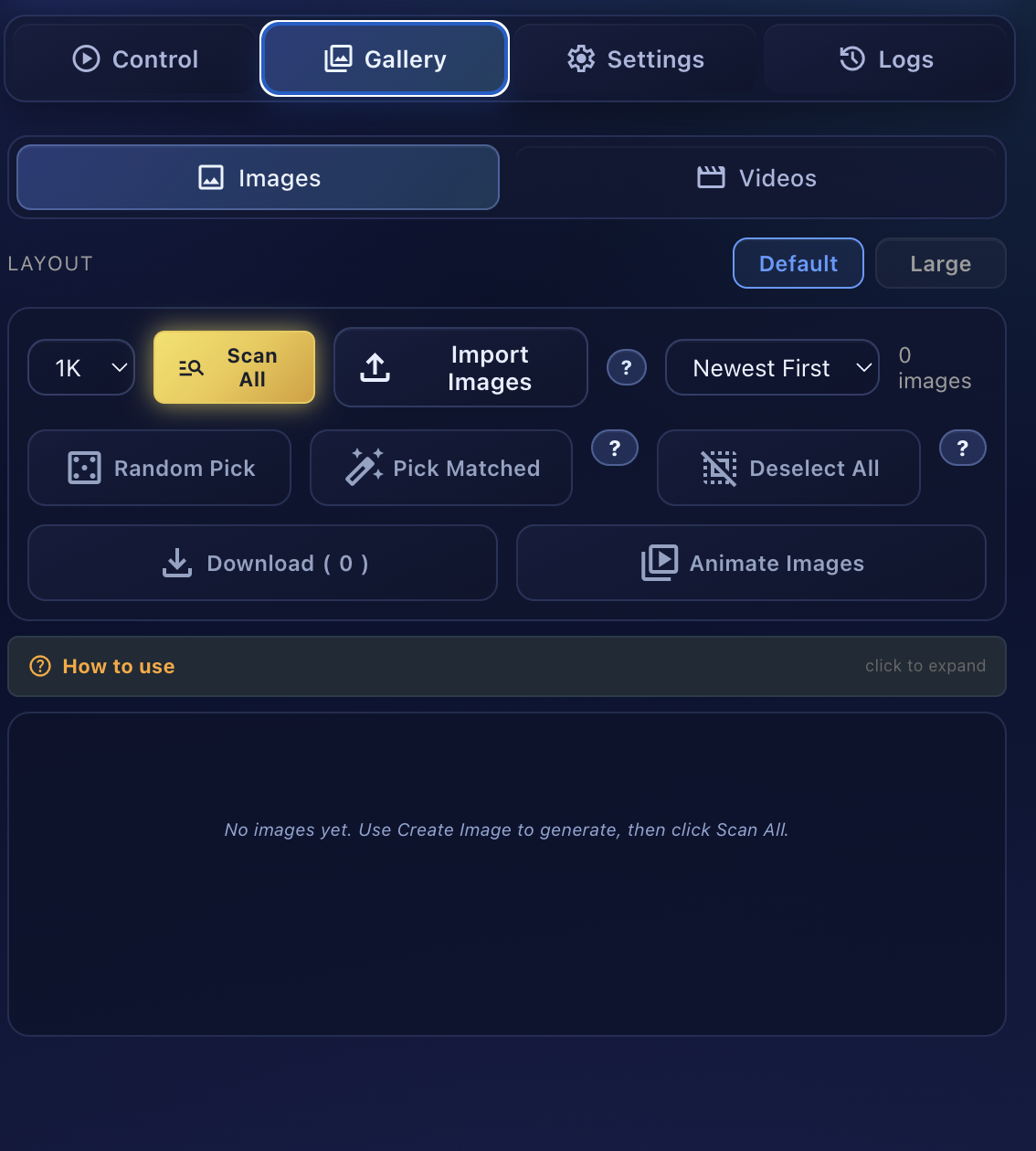
Scan All (gold button) finds all generated content. Random Pick selects 1 per prompt group. Pick Matched selects paired image+video sets. Animate Images sends selected to Frame-to-Video.
Settings Panels
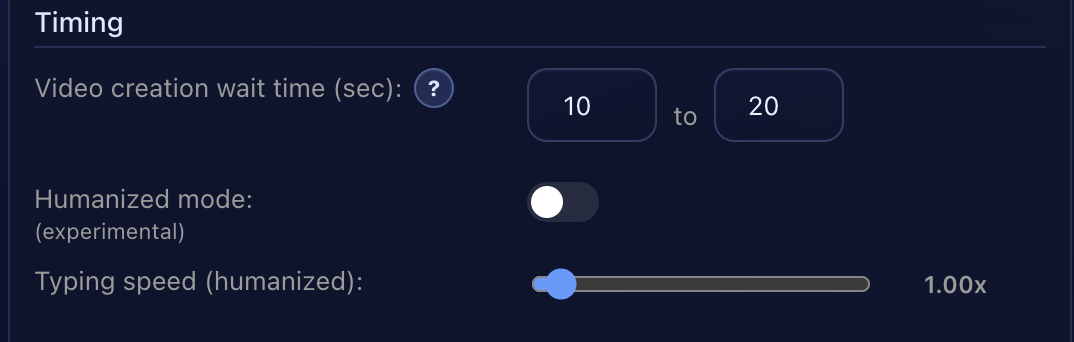
Set video creation wait times. Enable Humanized mode to add natural typing speed variation — makes automation less detectable.
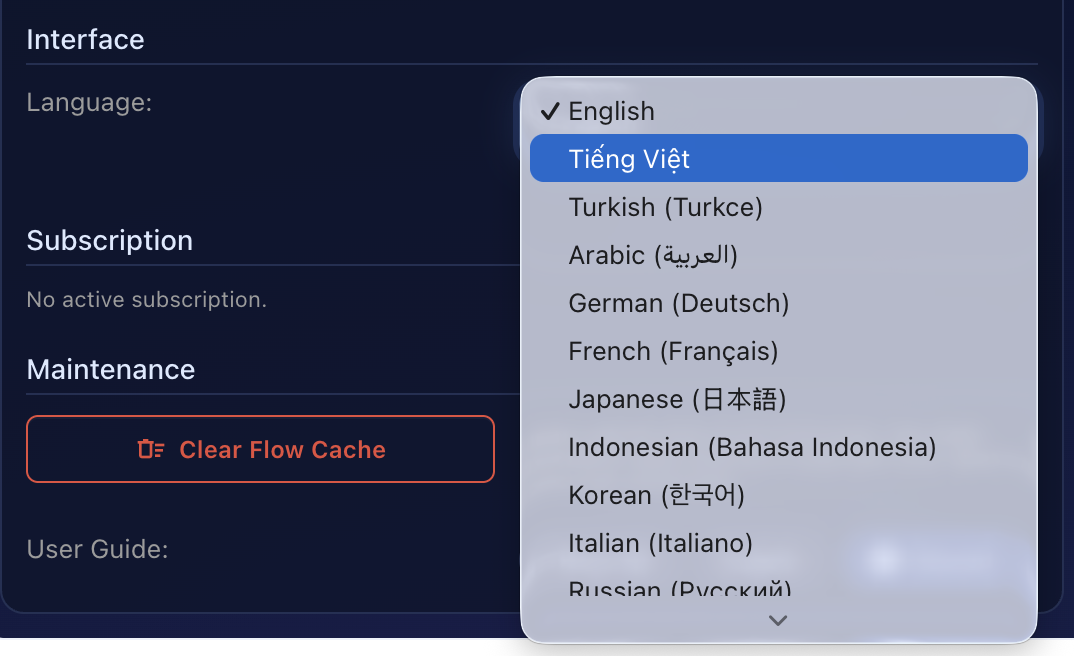
14+ languages including Vietnamese, Turkish, Arabic, German, French, Japanese, Korean, and more. Full UI translation.
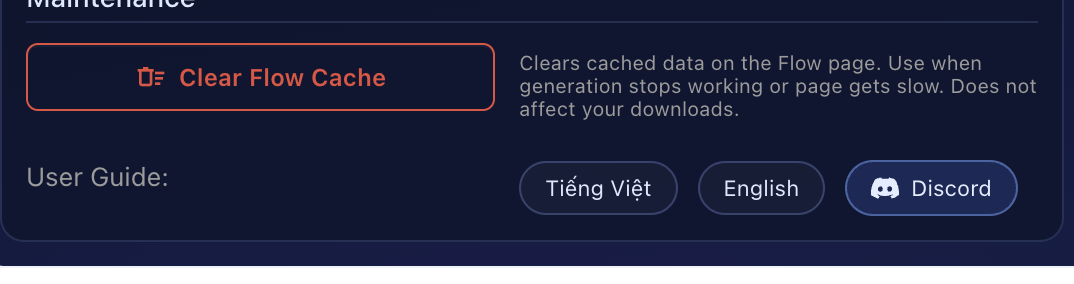
Clear Flow Cache resets the page when generation stops working. User guide links and Discord access directly from settings.
Help Center
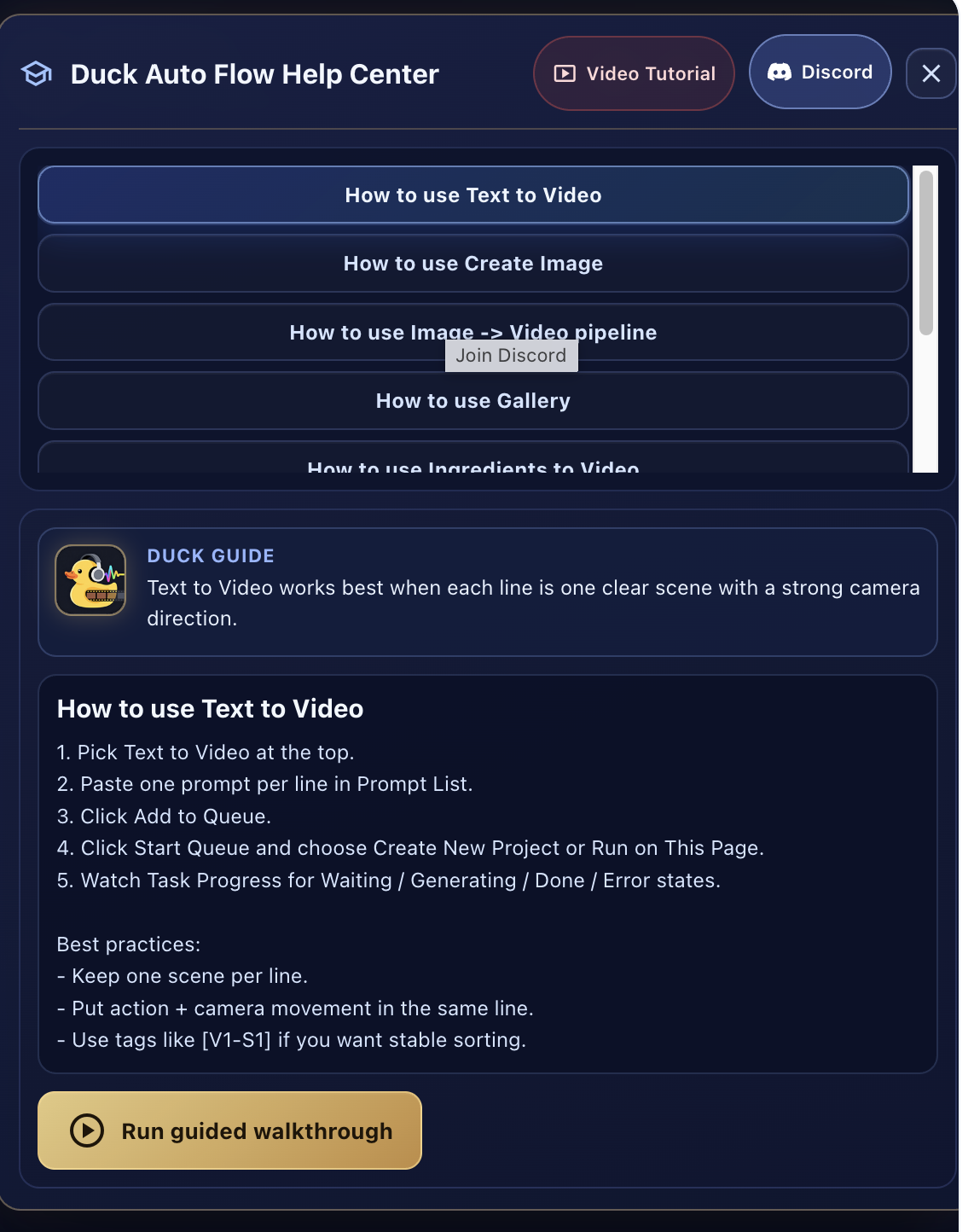
Click the ? button for instant help. Guides for every mode, video tutorials, and a guided walkthrough. Direct links to Discord support.